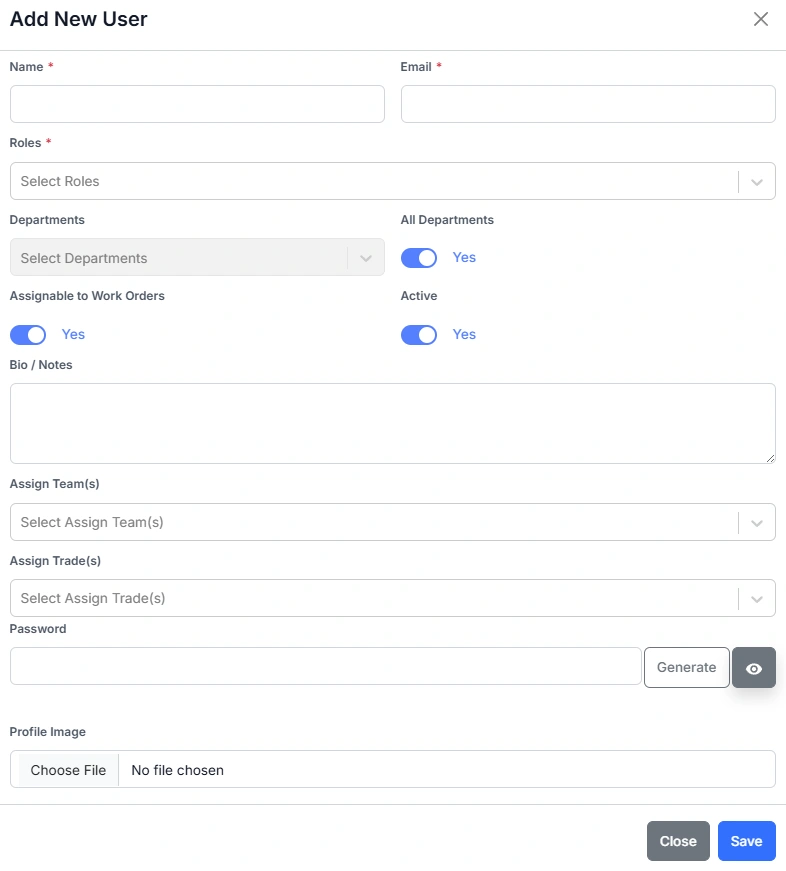
| Assignable to Work Orders Flag |
Select this option to allow the user to be assigned to work orders. When enabled, a Technician record is automatically created for the user. |
| All Departments Flag |
Select this option to give the user access to all departments, including any new ones added later. Leave this unchecked to restrict access to specific departments. Department access controls which Assets and Areas the user can view in the Desktop and Mobile apps. |
| Active Flag |
When this flag is selected, the user can log in to Samurai and be assigned to work orders (if the Assignable flag is also selected). Users are generally not deleted but marked Inactive, with personal details removed. This prevents access while retaining links to historical records. |
| Assign Team(s) |
Choose one or more teams the user belongs to. Team membership determines which work orders the user can perform. You can leave this blank if not required. |
| Assign Trade(s) |
Select one or more trades for the user. This field is currently for display purposes only. |