
Add a New Task
Adding a New Task
- From the side menu, select Assets & Areas → Assets.
- Open the asset you want to add a task to.
- Go to the Tasks tab.
- Click Add Task.
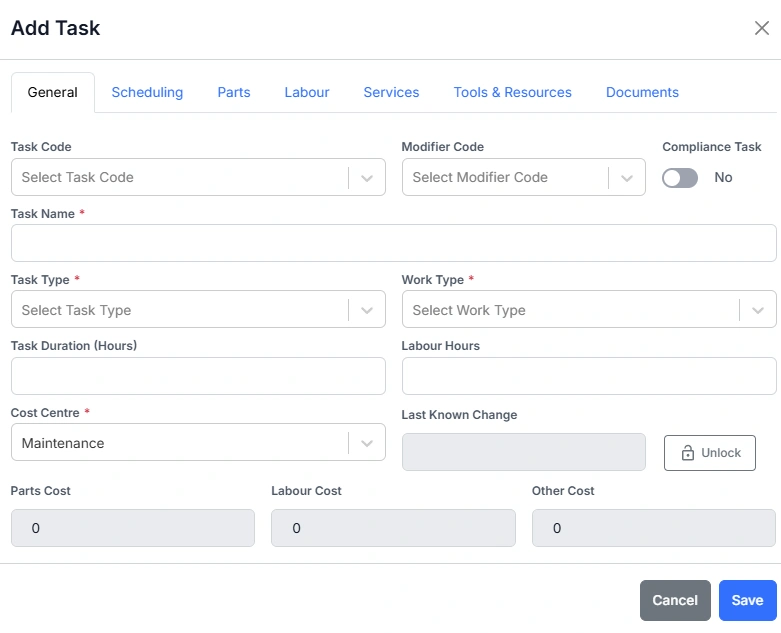
Completing the General Tab
Fill in the fields on the General tab to define the core details of your task.
| Field | Description |
|---|---|
| Task Code | Select a Task Code. Task Codes identify the specific component or activity associated with the task. This enables accurate tracking of component changes, allowing performance to be compared and benchmarked. Task codes also link component changes within an asset, ensuring component life is calculated correctly. |
| Modifier Code | Used to distinguish variations of the same task, such as left/right or front/rear components. |
| Compliance Task | Toggle Yes if this task relates to regulatory or compliance inspections. |
| Task Name | Enter a clear, descriptive name for the task (e.g. 500 Hour Service or Engine Oil Change). |
| Task Type | Select the task category, such as Inspection, Service, or Repair. |
| Task Duration (Hours) | Enter the estimated time to complete the task. This helps with scheduling, planning workloads and benchmarking. |
| Labour Hours | Enter the expected labour effort required for the task. This will also be populated from the Labour details if these are filled out. |
| Cost Centre | Select the cost centre where the maintenance cost will be assigned. |
| Last Known Change | This field records the meter reading at the time the component was last changed. It ensures the component’s life history is reported accurately. If the asset was purchased second-hand or added to Samurai after it had already been in service, enter the meter value from the most recent component change here. This allows the system to calculate true component life from that point forward. |
| Parts / Labour / Other Cost | These fields automatically calculate from linked parts, labour, and services once added. |
Once the general details are complete, click Save or move to the Scheduling tab to configure when and how the task generates Work Orders.
Next Steps
After saving the task, you can refine it further by adding details in the other tabs:
- Scheduling – Set how often the task repeats (time- or meter-based)
- Parts – Add parts required to complete the task
- Labour – Define trades or roles and estimated hours
- Services – Include external service requirements
- Tools & Resources – List any tools or equipment needed
- Documents – Attach checklists, work instructions, or safety documentation
Adding structured and consistent tasks is essential for accurate scheduling, costing, and reporting. Each task you define can be reused across similar assets, making it easier to maintain standardised maintenance procedures throughout your organisation.