Desktop App Navigation
In Samurai, most information is displayed in tables. All tables share a consistent layout and behave in a similar way across the system. Depending on your user permissions, some features described here may not be available to you. For example, you may be able to view and edit records but not delete them.
Adding Records
If your role permissions allow you to add records, a blue + Add Record button will appear in the top right corner of the screen.
Select this button to add new information to Samurai.
Action Buttons
At the end of each row in most tables, you’ll find one or more action buttons. Action buttons will display depending on your role permissions for each area.

These buttons allow you to view, edit, print or delete a record. The available actions depend on your access permissions and the type of record displayed.
Export Data
Most tables include a grey Export Data button that allows you to export the visible rows to a CSV or Excel file.
Note that only the rows currently displayed on the screen will be exported if additional data is loaded when you scroll, you’ll need to scroll through first to include it in the export.
Table Search
In the top right corner of each table, you’ll find a search box.
Typing text into this field dynamically filters the rows to display only those that match your search terms.
This is a quick way to locate a specific record without adjusting filters.
Filters
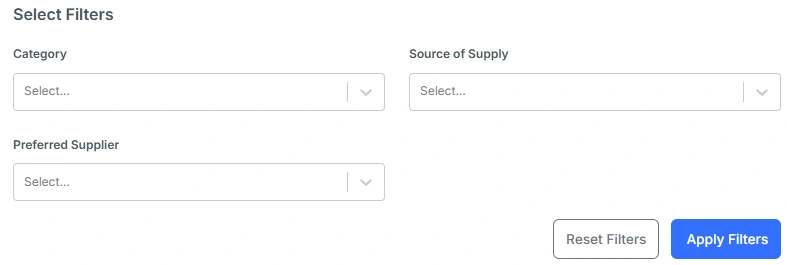
In the top left of many table screens, you’ll see a Filter icon and a Clear Filters (X) icon. Selecting the Filter icon opens the filter form, where you can choose criteria to narrow the results.
For example, selecting the Asset Class “Haul Trucks” in the Asset screen will display only haul truck records. Click X to clear both the filters and the search box, restoring the full list.
Sorting
Table columns with a sort icon can be clicked to toggle between three states:

- Sort ascending
- Sort descending
- No sorting applied
Sorting helps you quickly organise data, such as ordering assets by name, date, or priority.
Continuous Loading
For performance reasons, tables do not load all records at once.
If more rows exist than can be shown on the initial page, scrolling down will automatically load additional rows as you move through the list.
Validation
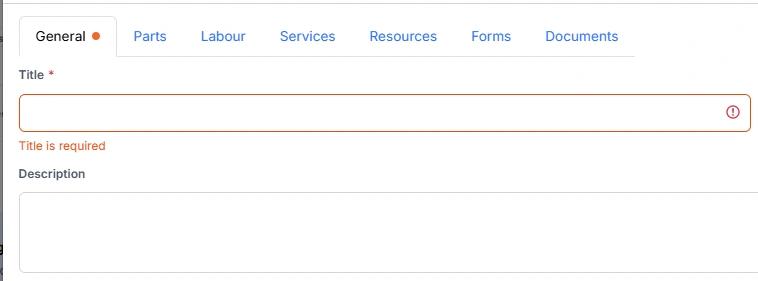
When you enter information into forms, Samurai checks that all required details have been provided.
Fields marked with an asterisk are mandatory. The form cannot be saved until these fields have been filled in.
If you try to save the form without completing required fields, an error message will appear.
If you attempt to save from a different tab while information is missing or invalid elsewhere, a red dot will appear next to the tab that contains the issue. The save button will appear unresponsive in this situation. Look for the red dot to identify which tab needs attention.