
Start a Form
Starting a Form allows you to begin or continue completing a digital Form in Samurai CMMS. Forms are most commonly started and completed in the mobile app, where technicians and operators capture information in the field.
A Form can be started as a new Form or resumed if it was previously started but not yet completed.
Before you start
Generally, before starting a Form:
- You must be logged into the mobile app
- The Form must be published and available to you
- Your role, department, and asset context must match the Form’s assignments
- If starting from a Work Order, the Work Order must already exist
If a Form does not appear, contact your administrator and review its Form Assignments and settings.
Also, within the Form Assignments make sure Do you want the form to show as an Action Button in the App? is toggled to Yes if you want it available in the Mobile App.
Ways to start a Form on mobile
Forms can be started from several locations in the mobile app, depending on the context.
Start a new Form from Home
Use this option when starting a Form independently.
Steps:
- Open the mobile app.
- Go to Home.
- Select Start a New Form.
- Choose the Form from the list.
The Form opens and is ready to be completed.
Continue an existing Form from Home
Use this option to resume a Form that was started but not completed.
Steps:
- Open the mobile app.
- Go to Home.
- Select Continue an Existing Form.
- Choose the Form from the list.
The Form opens at the point it was last saved and synced.
If completing Form in offline mode [insert hyperlink here], it is important to sync your changes so that other users can continue from where you left.
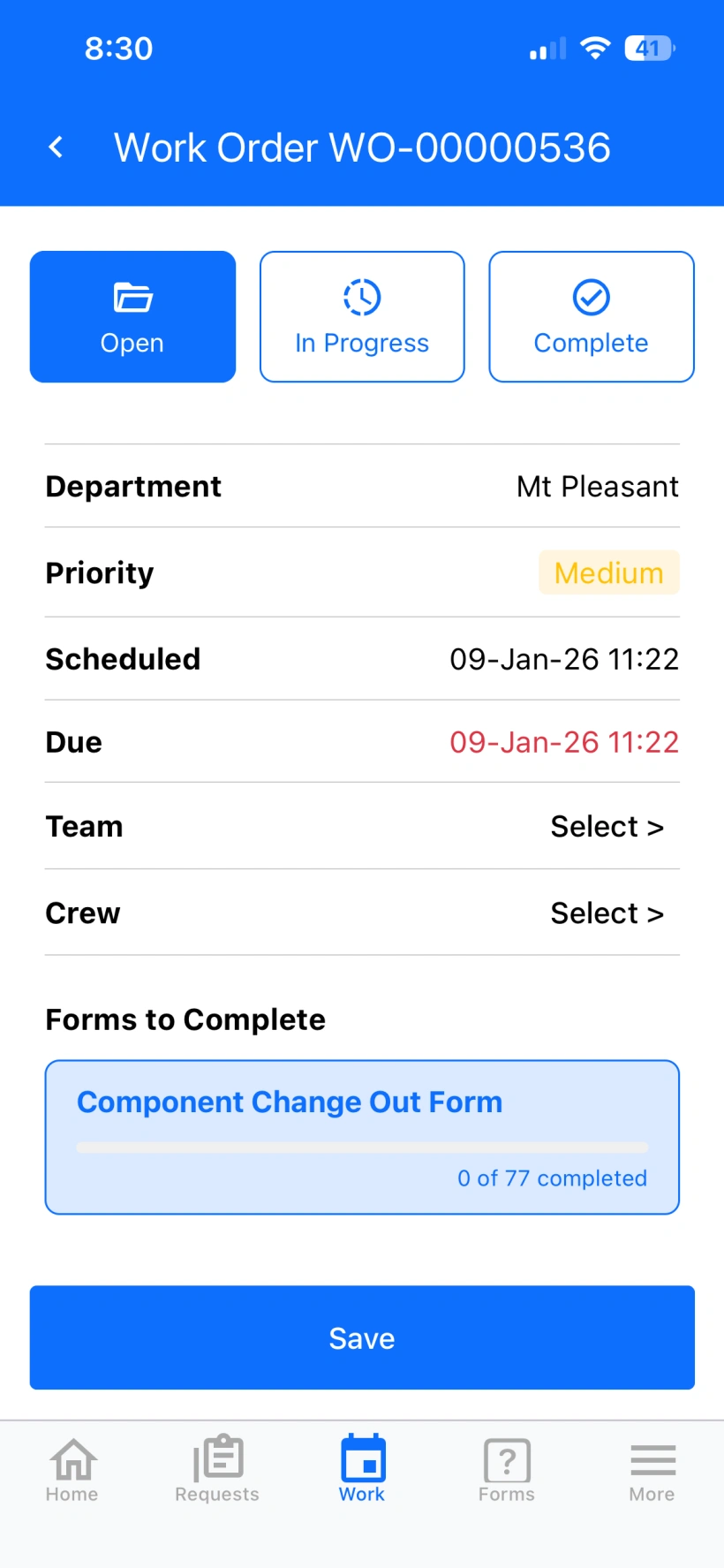
Start or continue a Form from a Work Order
Use this option when the Form is linked to maintenance work.
Steps:
- Open the mobile app.
- Go to Work.
- Open the relevant Event (advanced assets only).
- Open the Work Order.
- Scroll down to Forms to Complete
- Select the Form you want to start or continue.
Start or continue a Form from the Forms tab
Use this option to manage Forms directly.
Steps:
- Open the mobile app.
- Go to Forms.
- Choose an existing Form to continue or select Start a New Form and choose the Form
This view shows all Forms available to you and any Forms currently in progress.
What happens after a Form is started
Once a Form is started:
- It is marked as an Existing Form
- It appears in the Forms tab
- Progress is saved automatically as you enter data
- The Form remains editable until Complete Form is selected
A Form is not considered complete until the Complete Form button is pressed and all validation passes.
Example of starting a Form
A technician arrives on site to perform an inspection.
The technician:
- Opens the mobile app
- Selects Home → Start a New Form
- Chooses the Daily Equipment Inspection Form
- Begins entering inspection results
The Form appears as In Progress until it is completed.
Started Forms
Forms that have been started but are yet to be completed are distinctly visible on both the mobile and desktop app.
Desktop
Started forms are located:
- From the side menu, select Forms → Forms Management
- Go to the In Progress Tab
You can click on a Form here to continue completing it.
Mobile
Started forms are located on the Forms tab.
You can click on a Form here to continue completing it.
Important considerations and best practices
- Use Continue an Existing Form to avoid duplicate submissions
- Forms that are worked on in offline mode should be synced as soon as possible to ensure data integrity by maintaining a single source of truth and enabling others to have access to current information.
- Forms started but not completed remain visible until finished
- Start Forms as close as possible to when the activity begins
- Ensure all required fields are completed before finishing
- Completed Forms cannot be edited unless permissions allow
Starting a Form correctly ensures accurate data capture, traceability, and smooth handover between field and office teams.