
Offline Mode
Purpose
The Samurai App continues to work when the device is not connected to the internet. It automatically switches to Offline Mode, saves changes locally, and synchronises them when the device is back online.
What Functions Are Available Offline
Not all Samurai App functions are available when the device is offline. To protect data integrity, some actions can only be performed while connected to the internet. Additional offline functionality may be added in future releases.
The following functions are currently available offline.
Forms
- Start new forms
- Continue in progress forms
- View completed forms from the last two weeks
- Fill out and complete forms
Work Requests
- Add work requests
- Edit work requests
- Approve work requests
Downtime Events and Work Orders
- Edit downtime events
- Add delays to downtime events
- Chnage Downtime Event Status
Other
- View a list of assets
- View a list of areas
- View a list of teams
- View a list of people and technicians
Functions Not Available Offline
The following functions require an active internet connection.
- Add downtime events
- Add work orders to downtime events
- Record new breakdowns
How Offline Mode Works
- Samurai detects the device’s internet connection automatically
- When the connection drops, Samurai switches to Offline Mode
- In Offline Mode, records and images are saved locally on the device
- When the device reconnects, Samurai automatically starts synchronising local changes to the server

Automatic Synchronisation
When the device is online, Samurai synchronises automatically.
- Sync runs every 5 minutes while online
- It uploads any pending changes from the device to the server
- It downloads any new or updated data from the server to the device
Forcing a Sync Immediately
You can force an immediate sync if you need changes uploaded right away.
- If there are pending updates, a Synchronise button appears on the Home page
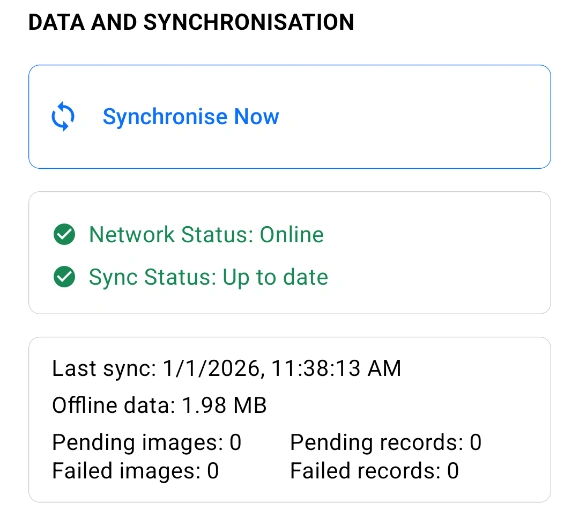
- You can also select Sync Now from More → Data and Synchronisation
Offline Status Indicators
Samurai displays clear indicators when the device is offline or has local changes waiting.
- If the device is offline, a header bar shows Device Offline
- If there are pending offline changes, a header bar shows Local Changes Waiting to Sync on every page
Data and Synchronisation Screen
The Data and Synchronisation screen shows sync status and what is stored locally.
To open it:
- More → Data and Synchronisation
The screen shows:
- Last sync date and time
- Amount of offline data stored (MB)
- Pending images count
- Failed images count
- Pending records count
- Failed records count
Handling Failed Uploads
If uploads fail, Samurai will retry several times automatically. Do not delete failed data immediately after the first failure.
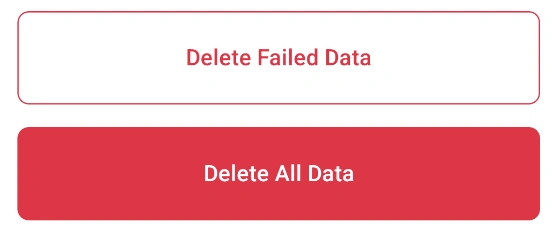
Two delete options are available in More → Data and Synchronisation.
- Delete Failed Data
- Deletes only images and records marked as failed
- Any deleted data is permanently lost
- Use only after retries have completed and you have confirmed the data cannot be uploaded
- Delete All Data
- Deletes all pending and failed images and records
- Any deleted data is permanently lost
- Use only as a last resort, such as when you need to reset offline data on the device
Key Points to Remember
- Offline work is saved on the device until it synchronises successfully
- Synchronisation happens automatically every 5 minutes while online
- You can force an immediate sync using Synchronise on the Home page or Sync Now in More → Data and Synchronisation
- Deleting failed or pending data permanently removes it and cannot be undone