
Models or Groups
Models or Groups represent the specific model or variant of an Asset. They form part of the Asset hierarchy in Samurai CMMS and are used to classify assets for reporting, filtering, and analysis – facilitating consistency when managing assets of the same build or operational role.
Asset Hierarchy
The Asset hierarchy is: Manufacturer → Class → Model or Group → Asset
For example: Caterpillar → Haul Truck → 793F → DT001
How Models or Groups work
A Model or Group describes the design or build type of an Asset, such as a specific equipment model or group of similar assets. Each Asset is linked to a single Model or Group.
This means:
- Models provide consistent classification across Assets
- Assets of the same Model can be grouped and compared
- Model data supports reporting and analytics without affecting maintenance behaviour
Common uses for Models or Groups
Models or Groups are typically used to:
- Group Assets by make, model, or type
- Apply standard maintenance Tasks to multiple Assets
- Simplify Asset setup and reduce configuration effort
- Improve consistency across maintenance programs
- Analyse maintenance and performance trends by model / group
Changing a Model or Group affects future reporting views but does not modify historical data.
Model and Group fields
Models and Groups belong to one:
- Class
- Manufacturer
Add a Model or Group
- From the side menu select Reference Tables → Models & Groups
- Select + Add Group
- Enter the Model or Group Name, Class, Manufacturer. Optionally attach an image and description.
Hundreds of models of construction and mining equipment have been loaded into Samurai and are available in this list. Try to find the asset model before adding a new one.
The applicable Class and Manufacturer must already exist in order to create a Model / Group.
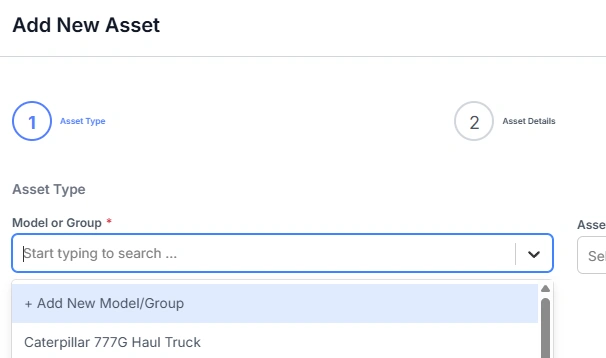
Add a Model or Group when creating a new Asset
- From the side menu select Assets & Areas → Assets
- Select + Add Asset
- If the Model or Group is not found in the list, a new one can be added by selecting Add New Model Group from the top of the drop down list
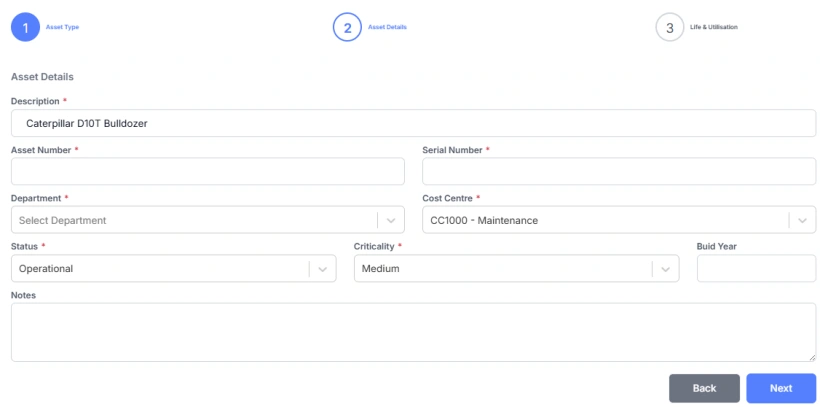
- Select an optional Image for the asset
- Click Next
Important considerations
- Renaming a Model or Group updates how it appears in reports and filters
- Deleting a Model or Group may be restricted if Assets are linked to it
- Models or Groups do not control maintenance schedules or system access
This structure ensures Assets are consistently classified while keeping maintenance configuration and history independent of Asset metadata.