
Add a Meter
Open Assets in Samurai, then edit the required Asset.
Standard and Advanced Planning Types can have multiple different meters. Basic Assets do not show meter tabs in the Asset editor. See Asset Planning Types.
Assign a meter
- Open Assets, find the Asset, and select Edit.
- Open the Meters tab and select Add Meter.
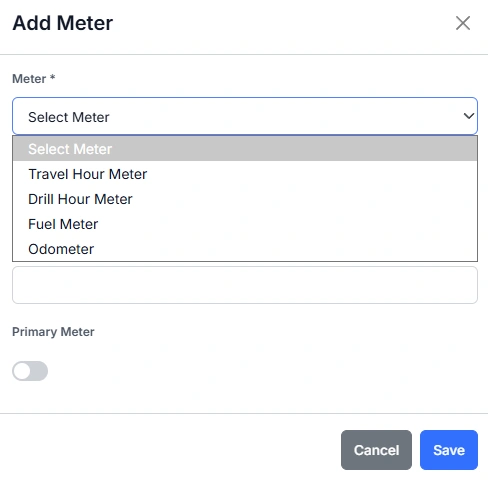
- Choose a Meter. The selector excludes meters already assigned to this Asset. Create the definition first in Meters if necessary.
- Enter the Start Reading and a positive Utilisation per Year, or enable Auto Update Annual Utilisation.
- If auto update is enabled, set Days of History to Consider and Minimum Number of Readings. Manual annual utilisation is disabled while the system calculates it from recent readings.
- Set Primary Meter if this meter should drive the Asset's lifecycle usage calculations. The first meter is selected as primary by default; selecting another primary clears that flag on the other meters.
- Select Save in the meter dialog.
Review a meter
Return to Meters from Assets and use the meter's Edit action to review its settings. The Start Reading establishes the baseline at the Asset's System Start Date. Changes to that baseline can affect which later readings pass validation, so check the reading history after correcting it.
The screenshot shows the basic controls; the current dialog also includes automatic annual utilisation and primary-meter settings.