
Task Code
Task Codes are used to classify and describe the specific type of maintenance work being performed. They add detail and consistency to Tasks and Work Orders and support accurate reporting, analysis, and forecasting in Samurai CMMS.
Task Codes complement Task Types by providing a more granular description of the work. They do not control scheduling, costs, or workflow.
How Task Codes work
A Task Code can be assigned to a Task or directly to a Work Order. When a Task Code is set on a Task, it is automatically applied to any Work Orders created from that Task.
This means:
- Work Orders inherit the Task Code from the Task
- Ad-hoc Work Orders can have Task Codes applied manually
- Task Codes can be updated on Work Orders for reporting corrections
Task Codes are used consistently across Assets, Sites, and Departments.
Common uses for Task Codes
Task Codes are commonly used to:
- Identify the specific component or activity involved in the work
- Analyse maintenance history at a detailed level
- Support failure analysis and lifecycle reporting
- Improve forecasting for component replacements
- Filter and group data in reports and dashboards
Task Code fields
Task Codes are created with the following fields.
| Field name | Required | Description |
|---|---|---|
| Code | Yes | Short identifier for the Task Code. This can be numeric or alphanumeric and should be unique. |
| Description | Yes | Clear description of the work or component the Task Code represents. |
| System | No | Optional logical grouping used to group related Task Codes, such as Engine, Powertrain, or Hydraulic. |
Creating Task Codes
- From the side menu, select Reference Tables → Task Tables → Task Code.
- Click + Add Task Code
- Enter the Code and Name. Optionally link to a System
- Save the Task Code.
Once created, the Task Code becomes available for selection.
Where Task Codes apply
Task Codes can be used in the following areas:
- Tasks, where they are inherited by generated Work Orders
- Ad-hoc Work Orders
- Reporting, dashboards, and KPI analysis
Task Codes do not affect Task scheduling or maintenance logic.
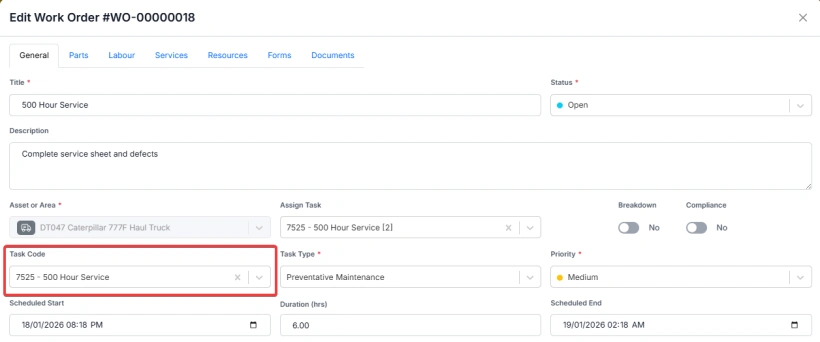
Add a Task Code to a Task or Work Order
- Select to add/edit the Task or Work Order
- Go to the General tab (first tab by default)
- Select the Task Code from the dropdown
- Click Save
Example of Task Codes in use
A Task may be configured as follows:
- Task Type: Component Change Out
- Task Code: 1052 – Turbocharger
Reports can then be run for a Task Code of 1052 - Turbocharger to analyse things such as the current and historical service life of all Turbocharger tasks across your fleet, or further filter this by Class, Model or Department.
Important considerations
- Task Code cannot be deleted if they are linked to records
- Task Codes are for classification and reporting only
- Systems provide optional grouping and do not change Task behaviour
This approach ensures maintenance work is described consistently while providing the detail required for meaningful analysis.