Setup a Schedule
- Go to Assets and Areas → Assets
- Edit the required asset
- Open the Tasks tab
- Edit the task you want to update
- Open the Scheduling tab
- Adjust the schedule as needed
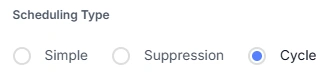
Scheduling Type
Choose Simple, Suppression or Cycle. For details on each option, see the guide on Scheduling Types.
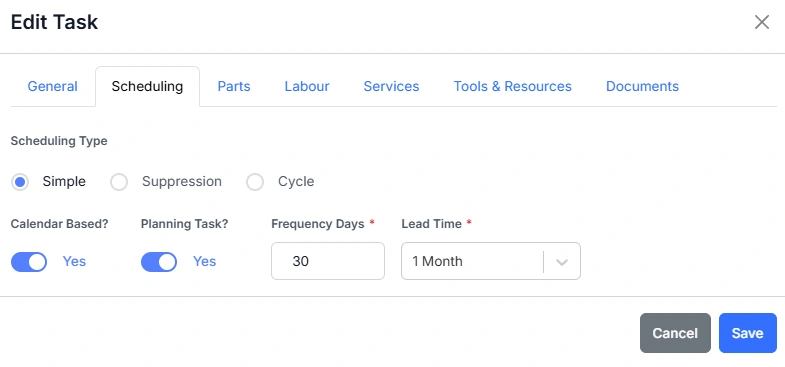
Simple, Date Based
- Turn on Calendar Based for schedules measured in days.
- Turn on Planning Task to allow Samurai to raise future work orders automatically.
- Enter the Frequency which is the number of days between each service.
- Choose a Lead Time which sets how far in advance the work order will be created.
- Save the task.
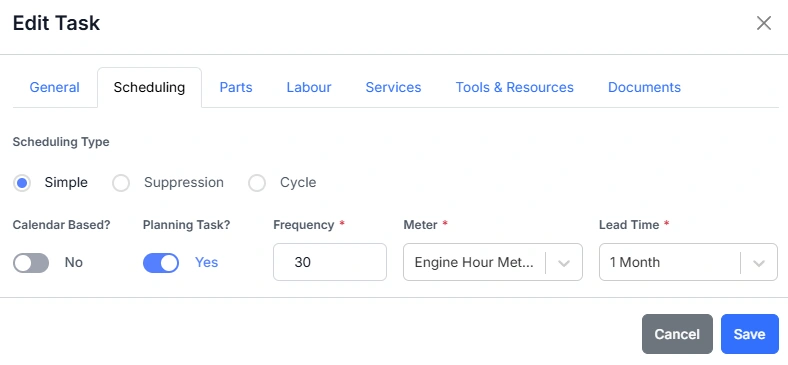
Simple, Usage Based
- Turn off Calendar Based to schedule by a usage meter such as hours.
- Turn on Planning Task so future work orders are raised automatically.
- Enter the Frequency which is the number of meter units between services.
- Select the Usage Meter if required. Most assets will only have one.
- Choose a Lead Time for how early the work order is generated.
- Save the task.
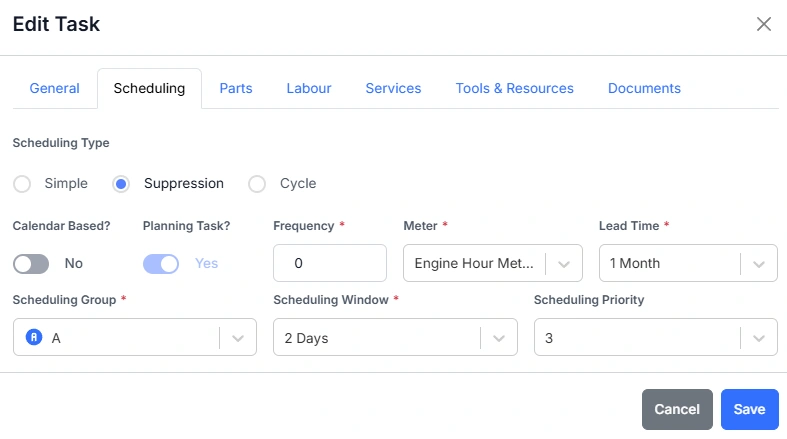
Suppression
- Turn Calendar Based on or off depending on whether the schedule uses days or a meter.
- Planning Task is always enabled for suppression tasks.
- Enter the Frequency in days or meter units.
- Select a Usage Meter if there is more than one option.
- Choose a Lead Time.
- Select a Scheduling Group.
- Set the Scheduling Window, the overlap period where lower priority tasks will be suppressed.
- Enter the Scheduling Priority. Lower numbers have higher priority.
- Save the task.
- Repeat these steps for each task in the suppression group.
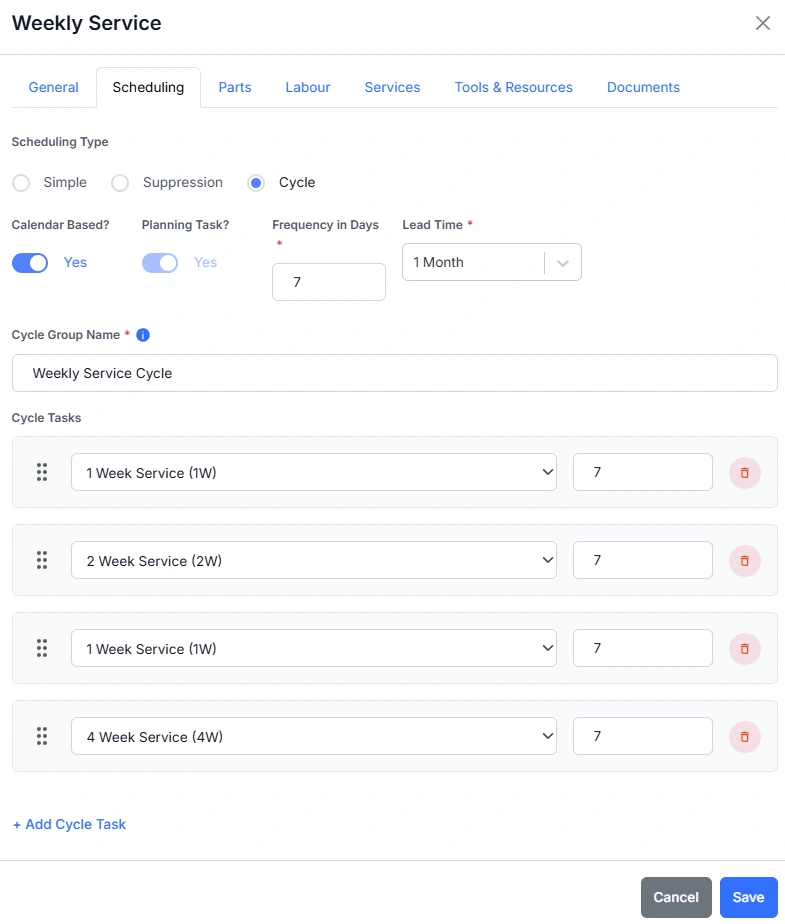
Cycle
- Turn Calendar Based on or off depending on whether the cycle uses days or meter units.
- Planning Task is always enabled for cycle tasks.
- Enter a Cycle Group Name.
- Add at least two tasks under Cycle Tasks.
- Select each task and enter the Interval, the amount of time or usage between each task in the sequence.
- Drag tasks into the correct order using the handle.
- Save the task.
All tasks assigned to the cycle group are now linked. Opening any task in the group will show the cycle under its scheduling tab. The same task can appear more than once in a cycle. Changing the scheduling type to Simple or Suppression and saving will remove the cycle group from all linked tasks.