
Update Work Order Status
Using the Status Buttons
- From the side menu, select Work Management → Work Orders
- Select the Work Order you want to change
- Use the Status buttons to change the Work Order Status

- You may need to enter additional information to change the status. For example, if you want to complete the work order, you'll need to enter the Start and Completion dates and times.
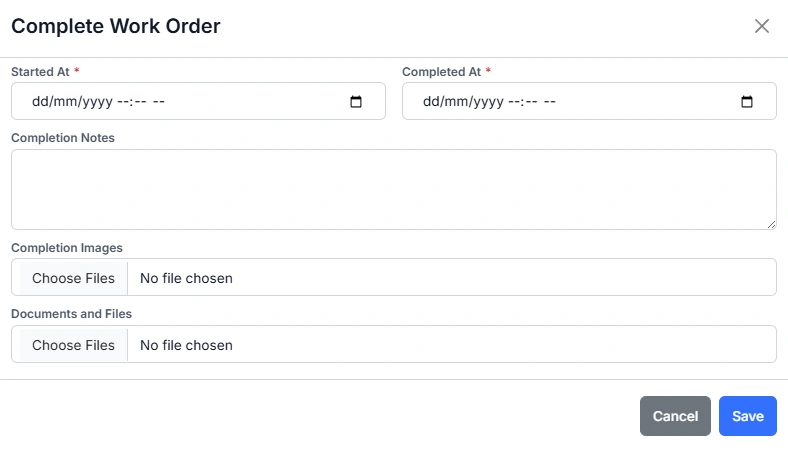
When you complete a Work Order, it will immediately move to the Completed list and will no longer be in the Scheduled or Unscheduled list.
Within the Work Order Editor
The status can also be changed in the Work Order editor.
- From the side menu, select Work Management → Work Orders
- Select the Work Order you want to change
- Select Edit
- In the General tab, use the Status dropdown to change the Work Order Status
