
Print a Form
Printing a Form allows you to generate a PDF copy of a completed Form for offline review, record keeping, or sharing. Forms can only be printed from the Desktop App and must already be completed.
Before you print a Form
Before printing a Form:
- The Form must be completed
- You must have access to the Desktop App
- You must have permission to view the Form
Only completed Forms can be exported and printed.
How to print a Form
Completed Forms are printed by exporting them to PDF.
Steps:
- Go to Forms → Forms Management
- Select the Completed Forms tab
- Open the Form you want to print
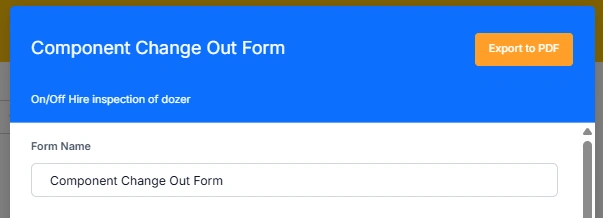
- Click Export to PDF in the top-right corner
A PDF file is generated and downloaded to your computer.
After exporting the Form
Once the PDF has been created:
- Open the file from your downloads folder, or
- Click the download link once it appears
You can then:
- Review the completed Form
- Print it using your normal print options
- Save the PDF externally in your desired location if required
- Edit the PDF copy as desired
- Email the PDF to other users or external parties
Example of printing a Form
A supervisor needs a hard copy of a safety audit.
The supervisor:
- Opens Forms → Forms Management
- Selects the Completed Forms tab
- Exports the completed safety audit to PDF
- Prints the document for a site review meeting
Important considerations and best practices
- Always confirm the Form is complete before printing
- Use PDF export for consistent formatting
- Store printed or saved copies securely if they contain sensitive information
- Printed Forms reflect the state at print time
Printing Forms provides a simple way to share, archive, and review completed Form records outside Samurai CMMS.