
Mobile App Navigation
The Samurai Mobile App allows technicians, operators, and field staff to carry out maintenance activities directly from their device.
It works in sync with your organisation’s Samurai desktop system so that work orders, forms, and records remain current and consistent across both platforms.
Using the mobile app, you can:
- View and complete assigned work orders and events
- Raise work requests or report breakdowns while on-site
- Fill out forms and inspections through guided workflows
- Record asset usage by entering meter readings
- Access reference details such as assets, areas, and team members
The app’s bottom navigation provides quick access to key areas including Home, Jobs, Requests, Forms, and More.
From starting a job to reviewing completed work, the app provides all the tools needed to manage daily maintenance tasks in the field.
This guide outlines each section of the mobile app and explains how to navigate, perform key actions, and record maintenance information accurately.
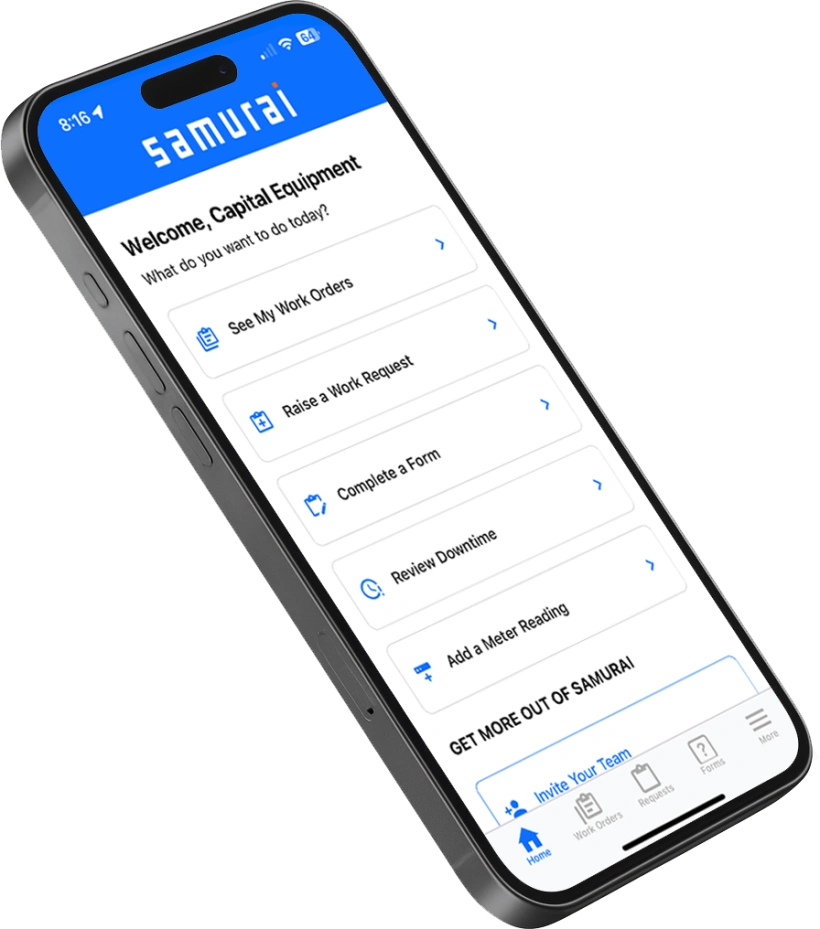
Bottom Navigation
The bottom navigation bar provides quick access to the main areas of the mobile app.
| Area | Description |
|---|---|
| Home | The home screen lists common actions for quick access. These are the most frequently used functions in the app, making it easy to start or review your daily tasks. |
| Jobs | The Jobs area displays your events and work orders. It shows upcoming, in-progress, and completed work, allowing you to easily view and action tasks assigned to you. |
| Requests | If your organisation uses Work Requests, they appear here. Requests (sometimes called defects) represent potential work captured in the field that requires review and approval before becoming a work order. |
| Forms | Forms are pre-configured workflows that guide you through tasks and record information in a structured way. They can also automate actions, such as updating an asset’s status or booking parts back into stock. |
| More | The More section provides access to administrative and reference functions, including changing your password, logging out, and viewing team members, assets, and areas within your department(s). |
Home Screen
The Home screen is the starting point of the Samurai mobile app. It provides quick access to the most common actions technicians and operators perform in the field.
When you open the app, you’ll see a welcome message displaying your organisation’s name, followed by a list of actions you can take right away.
Main Actions
| Action | Description |
|---|---|
| Raise a Work Request | Use this option to report a fault, issue, or job that needs attention. Work requests are reviewed by supervisors before becoming approved work orders. |
| Record Breakdown | Log an unexpected equipment failure or urgent maintenance event. This allows the maintenance team to prioritise and respond quickly to downtime events. |
| Start or Join Planned Work | Access your scheduled maintenance or other planned work orders. You can start work directly from here or join an existing job if it’s already in progress. |
| Start New Form | Launch a configured form or checklist for structured data entry. Forms guide you step-by-step through processes such as inspections, audits, or maintenance checks. |
| Add a Meter Reading | Record usage data, such as operating hours or production counts, against an asset. Meter readings help Samurai calculate maintenance schedules and trigger future work orders. |
Get More Out of Samurai
At the bottom of the home screen, you’ll find additional options to help you and your team make the most of the app:
| Option | Description |
|---|---|
| Invite Your Team | Share access with your team members so they can log in and start using Samurai in the field. |
| Contact Support | Reach out to the Samurai support team for assistance with using the app or troubleshooting issues. |
The home screen is designed for quick action. Most daily maintenance tasks can be started right from here without navigating through menus.
Jobs Screen
The Jobs screen is where you can view and manage your current and upcoming maintenance work. It lists both events and work orders, depending on how your organisation’s assets are configured.
Understanding Jobs
In Samurai, jobs may appear as either events or work orders:
- Advanced assets use events to group related work orders. Selecting an event opens its details, where you can view and manage the associated work orders.
- Standard and basic assets (or areas) display work orders directly. Selecting one opens the work order details immediately.
Although events and work orders look the same on this screen, their background colours help you quickly identify the type of work.
Job Colours
| Colour | Meaning |
|---|---|
| Red | Breakdown or unplanned work. These represent reactive maintenance tasks that require immediate attention. |
| Green | Planned maintenance jobs, such as scheduled services or inspections. |
Job Status Tabs
Across the top of the screen are three tabs that help you track work progress:
| Tab | Description |
|---|---|
| Pending | Shows upcoming jobs that are ready to be started or scheduled soon. |
| In Progress | Displays work currently being performed. This is the default view when you open the screen. |
| Done | Lists recently completed jobs for easy review or confirmation. |
Additional Features
- Search Bar: Use the search field at the top to quickly find a specific event or work order by name, asset, or keyword.
- Add Button: Tap the blue + button to create a new event or work order (depending on your permissions).
The Jobs screen is your central hub for field activity. It gives you a clear overview of what’s coming up, what’s underway, and what’s already completed, helping you stay organised and productive throughout your shift.
Forms Screen
The Forms screen is where you complete structured workflows to capture information, perform inspections, and carry out administrative or safety processes in the field.
Forms are designed to guide users step-by-step through a defined procedure, ensuring consistent and complete data collection.
Tabs
At the top of the screen are three tabs that organise your forms by status:
| Tab | Description |
|---|---|
| New | Displays all available form categories, such as Inspection, Safety, or Administration. Select one to start a new form. |
| In Progress | Lists forms you have started but not yet completed. You can open any form here to continue filling it out or make edits. |
| Done | Shows your completed forms for reference or review. These records are automatically saved in Samurai once submitted. |
Access and Visibility
User visibility depends on role permissions:
- Technicians can see only their own forms.
- Supervisors and department managers can view all forms created by users within their department.
This ensures each team member sees only what’s relevant to their work while supervisors maintain oversight of all department activity.
Working with Forms
Selecting a form opens it for editing or review. Each form guides you through a series of fields such as checkboxes, dropdowns, photos, and comments. Required fields are marked with an asterisk (*).
Forms can also include automated actions, for example:
- Updating an asset’s status
- Creating a work order
- Booking or returning parts to stock
Once all required fields are completed, tap Complete Form to finalise and submit it.
Example: On/Off Hire Form
The On/Off Hire Form is an example of how forms can be used in the field. It includes details like:
- Asset ID and customer
- Date of inspection
- Photos of key tags and relevant components
These forms help ensure assets are inspected and documented correctly when entering or leaving service.
Forms provide a flexible and structured way to capture information on-site. They replace paper checklists and manual data entry, helping your organisation maintain consistent, accurate, and auditable records.
Work Requests Screen
The Work Requests screen allows users to record potential maintenance or repair jobs that require review before becoming approved work orders. It provides an easy way for anyone in the organisation to report issues, faults, or opportunities for maintenance.
Purpose
Work requests are designed to capture and manage new maintenance needs without immediately creating a work order. This review step helps prevent duplicate entries and ensures that maintenance resources are directed appropriately.
Once reviewed and approved, a request can be converted into a formal work order for scheduling and execution.
Capturing a Work Request
To create a new work request, tap the + button. The New Work Request form will appear, allowing you to enter details such as:
| Field | Description |
|---|---|
| Asset or Area | Select the asset or area related to the issue. Requests can be raised for either. |
| Title | Provide a short, clear description of the issue or task. |
| Description | Add more detail about the problem or required work. You can also use voice input to dictate the description. |
| Priority | Set the urgency of the request – High, Medium, Low, or None. |
| Team | Select the team responsible for handling this type of work. |
| Add Photos | Attach one or more photos to illustrate the issue, helping reviewers understand the situation before approval. |
After entering the required details, tap Save to submit your request or Cancel to discard it.
Reviewing and Managing Requests
On the main Work Requests screen, you can view all requests that have been raised. Depending on your role and permissions:
- Technicians will typically see only their own requests.
- Supervisors and managers can review all requests within their area or department.
Requests are reviewed to confirm validity, eliminate duplicates, and determine if they should progress to work orders.
Optional Feature
Not all organisations use work requests. Some may create work orders directly, especially in operations where approval workflows are not required. If your organisation has disabled the work request feature, this section may not appear in your app.
Encourage field staff to use work requests to capture potential issues early. This helps build a complete maintenance history and ensures that nothing important is overlooked.
More Screen
The More screen provides access to your account management options, administrative functions, and key reference information used across the Samurai mobile app.
It’s designed to give you convenient access to personal settings and commonly used lookup tables, all in one place.
Your Profile
This section contains options for managing your personal account and login details.
| Option | Description |
|---|---|
| Logout of Samurai | Sign out of the mobile app. You can log back in at any time using your existing username and password. |
| Change Password | Update your password securely without needing to access the desktop app. |
| Manage Account | View and edit your personal account details, such as your name, contact information, and assigned roles. |
Reference Tables
Reference tables provide a read-only view of key information that helps you understand the context of your work. These lists mirror the master data configured in the Samurai desktop app.
| Table | Description |
|---|---|
| Assets | View the list of assets you work with, including their names and identifiers. |
| Areas | View all areas or locations defined within your department or organisation. |
| Teams | See which teams exist in your organisation and who belongs to each. |
| People | View team members and their contact details (depending on your role and permissions). |
These tables are especially useful when referencing asset or team details while completing forms or reviewing work orders in the field.
Get More Out of Samurai
At the bottom of the screen, you may also find links to additional resources and support tools, such as inviting team members or contacting the Samurai support team.
The More screen is your personal control centre in the mobile app. Use it to manage your account, check reference data, and access support without needing to switch back to the desktop system.