
Add Parts
A Work Order can record the Parts used to complete the work. Adding Parts to Work Orders ensures material usage, costs, and inventory movements are accurately captured in Samurai CMMS.
Parts recorded on a Work Order form part of the maintenance history and cost reporting for the Asset.
How Parts on Work Orders work
Parts are added as line items on a Work Order. Each line item represents a specific part and quantity used.
This means:
- Parts usage is recorded against the Work Order
- Costs are captured at the line item level
- Inventory can be adjusted where stock control is enabled
- Reporting reflects actual materials consumed
Parts can be added to Task-generated or ad-hoc Work Orders.
Common uses for Work Order Parts
Parts on Work Orders are commonly used to:
- Record materials consumed during maintenance
- Track part usage by Asset, Model, or Class
- Support inventory management and reordering
- Allocate material costs to Cost Centres and Expense Codes
- Provide audit evidence of work performed
Part line item fields
| Field name | Required | Description |
|---|---|---|
| Part Number | Yes | The part being used. Selected from the Parts register. |
| Description | No | A short description of the Part. |
| Source | Yes | How the Part is sourced (e.g., Purchase Order, Inventory). Automatically populated based on Part selection. |
| Supplier | Yes | Who the Part is acquired from. |
| Cost Centre | No | Cost Centre applied to this line item. Defaults based on inheritance rules. |
| Expense Code | No | Optional code used for cost classification and reporting. |
| Quantity | Yes | Number of units of the Part used on the Work Order. |
| Unit Cost | No | Cost per unit. Automatically populated if available from Part information but can be overridden. |
| Total Cost | Yes | Calculated automatically based on Quantity and Unit Cost. |
| Status | Yes | Procurement status of the Part. Automatically populated based on Part selection and Part Procurement Workflow. |
| Notes | No | Optional notes describing usage or context for the part. |
| Actions | new | Button to delete the Part line item. |
Some fields may be automatically populated based on system configuration, the selected Part, or Expense Code.
Pre-requisites
Before adding Parts to a Work Order:
- Parts must exist in the Parts register
- Users must have permission to add or edit Parts on Work Orders
- Inventory locations must be configured if stock tracking is used
- Expense Codes and Cost Centres should be set up if required for reporting
Refer to Add Parts for ways to add Parts to the Parts register.
Adding Parts to a Work Order
Parts are added directly from within a Work Order. To add a Part:
- Open the Work Order
- Navigate to the Parts section
- Select + Add Part in the top right
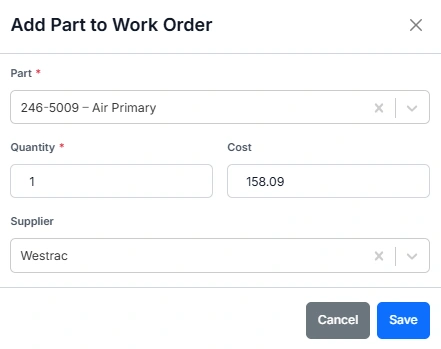
- Select the Part
- Enter the Quantity used or required
- The Cost will default to the price for the Part in the Part register. Manually override this required
- Select the Supplier. This may automatically populate if a single Supplier has been assigned to the selected Part
- Click Save
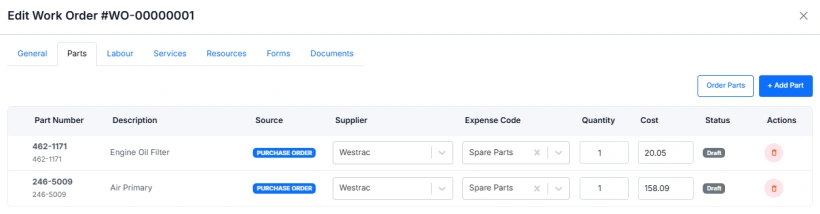
The Part is added as a part line item in the Work Order.
- Review or update the Cost Centre, Expense Code, and add Notes if required.
- Add more Parts or Save the Work Order.
The Source, Cost Centre, Expense Code, Total Cost and Status fields will be automatically populated based on system configuration.
Ordering Parts from a Work Order
- Open the Work Order
- Navigate to the Parts section
- Select Order Parts in the top right
- This will trigger the Part Procurement Workflow
- The line-item fields will become locked, and the Source and Status will update according to the Part Procurement Workflow
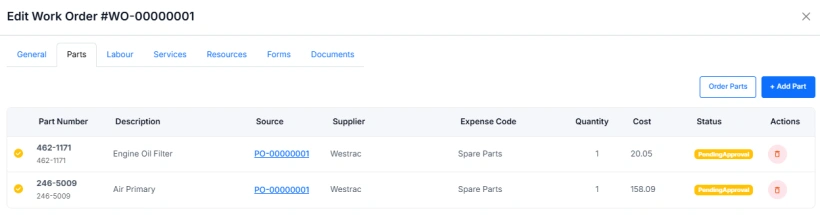
A Part line item cannot be deleted once Order Parts has been clicked and the Part Procurement Workflow has been initiated.
Cost allocation behaviour
Costs are allocated at the Part line item level.
This means:
- Each Part can have its own Expense Code and Cost Centre
- Default Cost Centres follow the inheritance hierarchy
- Selecting an Expense Code may override the inherited Cost Centre
- Manual overrides apply only to the selected line item
This ensures accurate cost reporting even when multiple Cost Centres and Expense Codes apply to a single Work Order.
Inventory behaviour
If inventory control is enabled:
- Stock levels are reduced when Parts are added
- Stock is adjusted based on the selected location
- Insufficient stock may trigger warnings or restrictions
If inventory control is not enabled, Parts are recorded for cost and history only.
Example of Parts in use
A technician completes a brake replacement.
On the Work Order, the technician adds:
- Part: Brake Pad Set
- Quantity: 1
- Expense Code: Brake Components
- Cost Centre: Site Maintenance
The Part is recorded against the Work Order, stock is reduced, and the cost is included and allocated in financial reporting.
Important considerations and best practices
- Parts can be added during execution (parts used) or planning (parts required) phases
- Add or consume Parts as work is completed to ensure accurate records
- Remove parts from a Work Order if they were not used
- Verify quantities before saving or ordering to avoid stock and purchasing errors
- Use Cost Centres and Expense Codes consistently for clean reporting
- Avoid editing Part costs on completed Work Orders unless correcting errors
- Ensure Parts are linked to the correct Asset and Work Order
- Historical Part usage is not changed if Part records are updated later
This approach ensures material usage is traceable, auditable, and aligned with maintenance and financial reporting.