
Add Services
Adding Services to Work Orders
This feature allows you to record external services used to complete maintenance work. Services represent work performed by third parties rather than internal labour or stocked parts.
Examples of Services include Crane Hire, Engineering Services, Transport and Logistics, and Waste Removal.
Services recorded on a Work Order form part of the Asset history, cost reporting, and procurement tracking in Samurai CMMS.
How Services on Work Orders work
Services are added as line items on a Work Order. Each line item represents a specific external service and its associated cost.
This means:
- Service costs are captured at the line item level
- Services can be ordered and tracked through the Services Procurement Workflow
- Costs can be allocated to Expense Codes and Cost Centres
- Reporting reflects actual external spend
Services can be added to both Task and user generated Work Orders.
Common uses for Services
Services on Work Orders are commonly used to:
- Record contractor and supplier work
- Track outsourced maintenance activities
- Capture external service costs accurately
- Support procurement and supplier reporting
- Allocate service costs to the correct Cost Centres
Service line item fields
The following fields are shown when adding Services to a Work Order. Field names match the Samurai CMMS user interface.
| Field name | Required | Description |
|---|---|---|
| Service | Yes | The external service being used. Selected from the External Services reference table. |
| Description | No | Additional detail describing the service provided. |
| Supplier | No | Supplier providing the service. Selected from the Supplier table. |
| Quantity | Yes | Number of service units being charged. |
| Cost Each | No | Cost per service unit. Automatically populated if defined on the Service. |
| Expense Code | No | Expense Code used for cost classification. A default may be applied from Settings. |
| Cost Centre | No | Cost Centre applied to this service line. Inherited or manually overridden. |
| Source | Yes | Indicates how the service was added, such as manual entry or procurement. Automatically populated based on Service Procurement Workflow. |
| Status | Yes | Procurement status of the service, such as ordered or completed. Automatically populated based on Service Procurement Workflow. |
| Notes | No | Optional notes or context for the service. |
| Actions | No | Edit or delete options for the service line. |
Some fields are automatically populated based on the selected Service, Asset, Expense Code, or system configuration.
Pre-requisites
Before adding Services to a Work Order:
- Services must exist in Reference Tables → Work Order Tables → External Services
- Services may have a default Cost per Service configured
- Suppliers must exist in the Supplier table if supplier tracking is required
- Users must have permission to add or order Services
- Expense Codes and Cost Centres should be configured for reporting
Adding Services to a Work Order
Services are added directly from within a Work Order. To add a Service:
- Open the Work Order
- Navigate to the Services section
- Select + Add Service
- Select the Service
- Enter a Description of the Service being provided
- Select a Supplier if applicable
- Enter the Quantity
- Review or update Cost Each if required
- Review or update Expense Code and Cost Centre if required
- Add Notes for additional information if needed
- Click Save
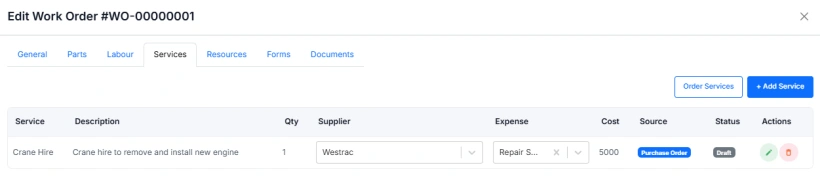
Ordering Services
In addition to adding Services manually, Services can be ordered using the Order Services button.
This process:
- Initiates the Services Procurement Workflow
- Behaves similarly to ordering Parts
- Tracks procurement Source and Status
- Supports approval and supplier engagement processes
Ordered Services remain linked to the Work Order throughout procurement and completion.
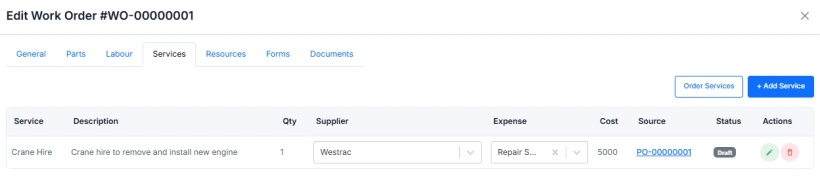
Cost allocation behaviour
Service costs are allocated at the line item level.
This means:
- Each Service can have its own Expense Code and Cost Centre
- Default Cost Centres follow inheritance rules
- Selecting an Expense Code may override the inherited Cost Centre
- Manual overrides apply only to the selected service line
This ensures accurate financial reporting, even when multiple Cost Centres apply to one Work Order.
Example of Services in use
A major lift is required to replace a component. The Work Order includes:
- Service: Crane Hire
- Supplier: External Crane Co
- Quantity: 1
- Cost Each: Default from Service
- Expense Code: External Services
- Cost Centre: Major Rebuilds
The Service information is populated in the Service section of the Work Order, ordered using the Order Services button, tracked through procurement, and included in maintenance cost reporting.
Important considerations and best practices
- Ensure External Services are configured correctly before use
- Use Order Services for services requiring procurement tracking
- Confirm quantities and costs before saving
- Use consistent Expense Codes and Cost Centres
- Avoid editing service costs on completed Work Orders unless correcting errors
- Services remain part of the Work Order history for audit and reporting
This approach ensures external service costs are traceable, accurate, and fully integrated into maintenance and procurement workflows.