
View Shift Logs
Open Shift Logs in Samurai from the Shift Log menu item. The module and view permission must be enabled for your role.
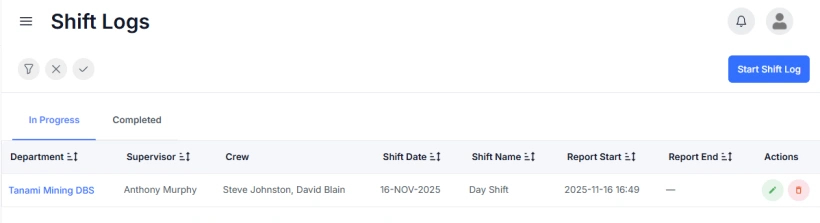
Find a log
- Select In Progress for open logs or Completed for finalised handovers.
- Apply Site or Department, Supervisor, Report Start, and Report End filters as needed. The date bounds apply to the log's report start/end, not to the dates of every Event it contains.
- Sort by Department, Supervisor, Shift Name, Report Start, or Report End. Scroll the list for more matching logs.
- If an expected log is missing, check the selected tab and widen or reset the filters. Your Department access also limits what can be returned.
Open the form
Select the Department name in a row to open its log. An in-progress log can be edited with the required permission; completed logs open read-only. The row's available edit/view controls provide the corresponding form actions.
Use the tabs to review Dashboard, General, People, Action Items, Events, Comments, and Documents. The form can show shared/live source records such as Department Action Items; use the stored PDF when you need the finalised handover as issued.
Open the completed report
In Completed, select the PDF icon in the Report column. It opens the stored report in another browser tab. A dash means that a stored report link is not available for that row; do not assume the PDF was generated or emailed successfully just because the log is completed.
For an editable saved log, Print Shift Log downloads a report without finalising it. Save and reopen first so the report uses the current saved notes, People and Documents. See Finalise and Share a Shift Log for the difference between preview, finalisation and delivery.
Open from Events
Where the module and your permissions allow it, open Events and select Open Shift Log. This opens the same selection workflow for an open log or a new Department log; it does not create a log merely by opening the window.