
Add Form to Work Order
Forms can be attached directly to a Work Order. Linking Forms to Work Orders ensures inspections, checklists, and structured data capture are completed as part of the maintenance task, not as a separate activity.
Forms added to a Work Order travel with it and can be completed in the mobile app or desktop app.
Forms are generally completed on the mobile app, whereas the desktop app is commonly used for tasks like double checking entries before submitting to a third-party.
What adding a Form to a Work Order means
When a Form is added to a Work Order:
- The Form is contextually linked to the Work Order
- The Form inherits the Asset or Area context
- Completed form data becomes part of the Work Order record
- Supervisors can review structured results alongside maintenance work
This ensures consistent execution and traceability.
Forms can only be added to Assets and Areas that are within their permissions scope - Refer to Form Assignments.
How Forms and Work Orders work together
Forms are designed to support the work, not replace it.
Key behaviour:
- Only Forms assigned within the Asset or Area's scope are available for selection
- Form availability respects department, asset class, and model or group
- Forms can be completed in the field on mobile or reviewed on desktop
- A Work Order can have multiple Forms attached
Common uses for Forms on Work Orders
Forms are commonly used to:
- Capture pre-start inspections
- Guide technicians through step-by-step checklists
- Record safety checks and sign-offs
- Collect consistent inspection data
- Support compliance and audit requirements
Form fields shown on a Work Order
When a Form is added to a Work Order, the following information is displayed.
| Field name | Required | Description |
|---|---|---|
| Form | Yes | The selected Form template linked to the Work Order. |
| Progress Bar | Read-only | Current completion progress of the Form. |
Fields become populated as the Form is completed.
Where Forms can be added
Forms can be added:
- When creating a new Work Order
- When editing an existing Work Order
Adding a Form to a Work Order
To add a Form:
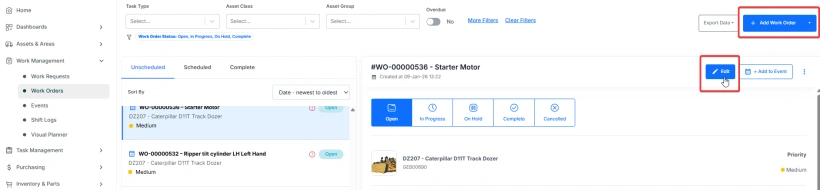
- Open an existing Work Order, or select + Add Work Order.
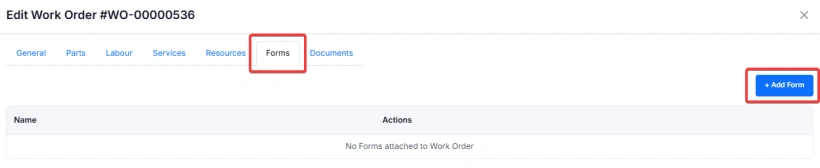
- Navigate to the Forms tab.
- Select + Add Form.
- Choose a Form from the dropdown list.
- Click Save once all the required forms have been added
Desktop Views
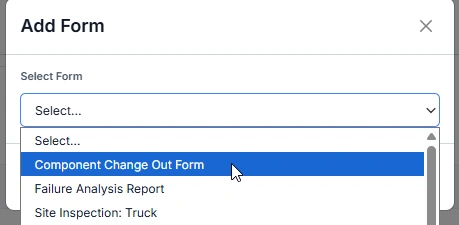
If a Form does not appear, review its Form Assignments and settings.
Mobile Views
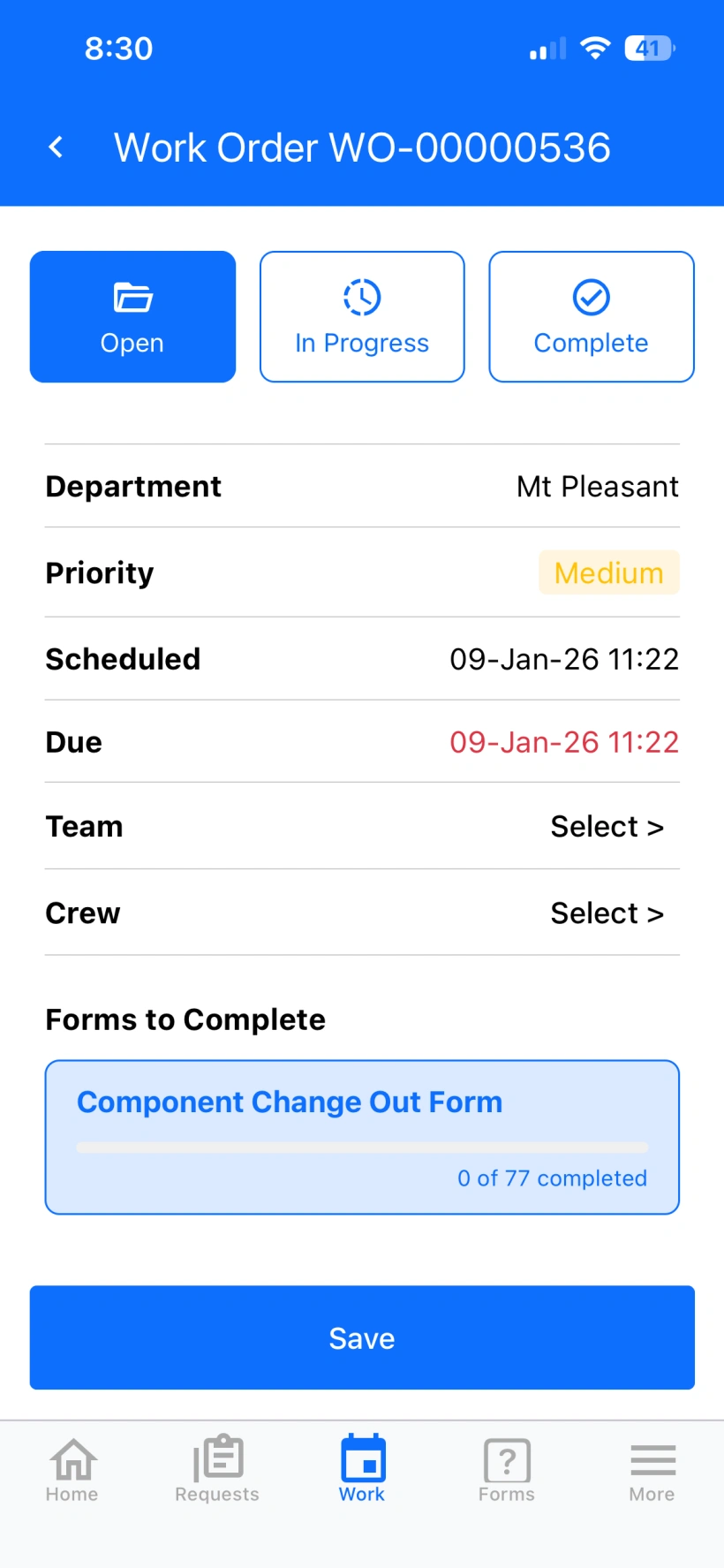
Completing Forms on a Work Order
Once linked:
- Field technicians typically complete Forms in the mobile app
- Supervisors and administrators can review or finalise Forms in the desktop app
- All completed data is stored with the Work Order
Forms remain visible after completion for audit and review.
Pre-requisites
Before adding Forms to Work Orders:
- Forms must be created and published in the Forms module
- Form Assignments must match the Work Order context
- Users must have permission to view and submit Forms
- The Work Order must be linked to an Asset or Area
Example of Forms in use
A maintenance Work Order requires a safety inspection.
The planner:
- Adds a Pre-Start Safety Checklist Form to the Work Order
The technician:
- Opens the Work Order on mobile
- Completes the Form before as part of the work
The supervisor:
- Reviews the completed Form on desktop
All information is stored together with the Work Order.
Important considerations and best practices
- Add Forms during planning to guide field execution
- Use clear and specific Form Assignments
- Avoid attaching unnecessary Forms
- Train technicians on completing Forms in the field
- Review completed Forms before closing Work Orders
- Forms support consistency, not enforcement of status changes
Adding Forms to Work Orders ensures structured data capture, better compliance, and clearer maintenance records within Samurai.