
Adding a new stock item
Set up a stocked item in four steps: register the Part, register its Stock Item, choose its warehouses and shelf locations, then record the opening quantities. Creating the records alone does not add stock on hand.
Before you start, check that the required Warehouses exist and that you have permission to maintain Parts and Stock Items and post the relevant stock transactions.
1. Register the Part
- Open Inventory & Parts → Parts Catalogue, or open the Parts Catalogue in Samurai.
- Search for the Part first. If it already exists, use it rather than creating a duplicate.
- Select Add Part. On General, enter Part Number, Description and Part Category. Add the OEM Part Number, Part Manufacturer, Preferred Supplier, Part Price and Pricing Date where applicable.
- Complete Storage Requirements and Documents if needed, then select Save.
The Stock Item switch in the Part form is read-only. Register the warehouse stock in the next step; do not try to enable stocking with this switch.
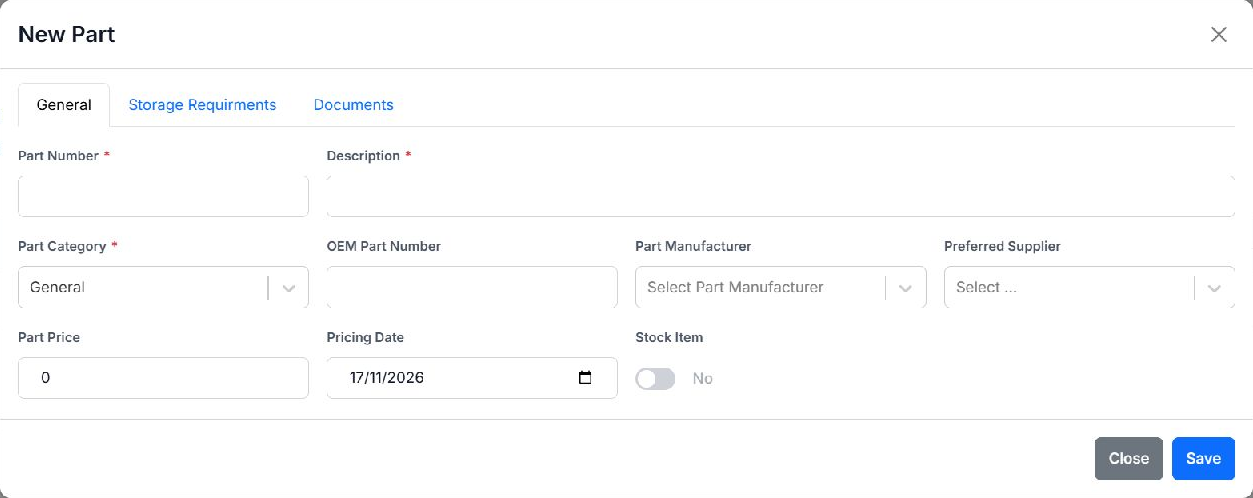
2. Register the Stock Item
- Open Inventory & Parts → Stock Items, or open Stock Items in Samurai.
- Select Add Stock Item to open New Stock Item.
- Select the existing Part Number. Review the copied Description, Currency and Serialised setting, and check the required Measurement Unit.
- Enter Stocktake (Days) if you use a stocktake interval. Add Notes or a Stock Image if useful.
Stock Item Number is generated automatically. Leave it unchanged and complete the warehouse selection before saving.
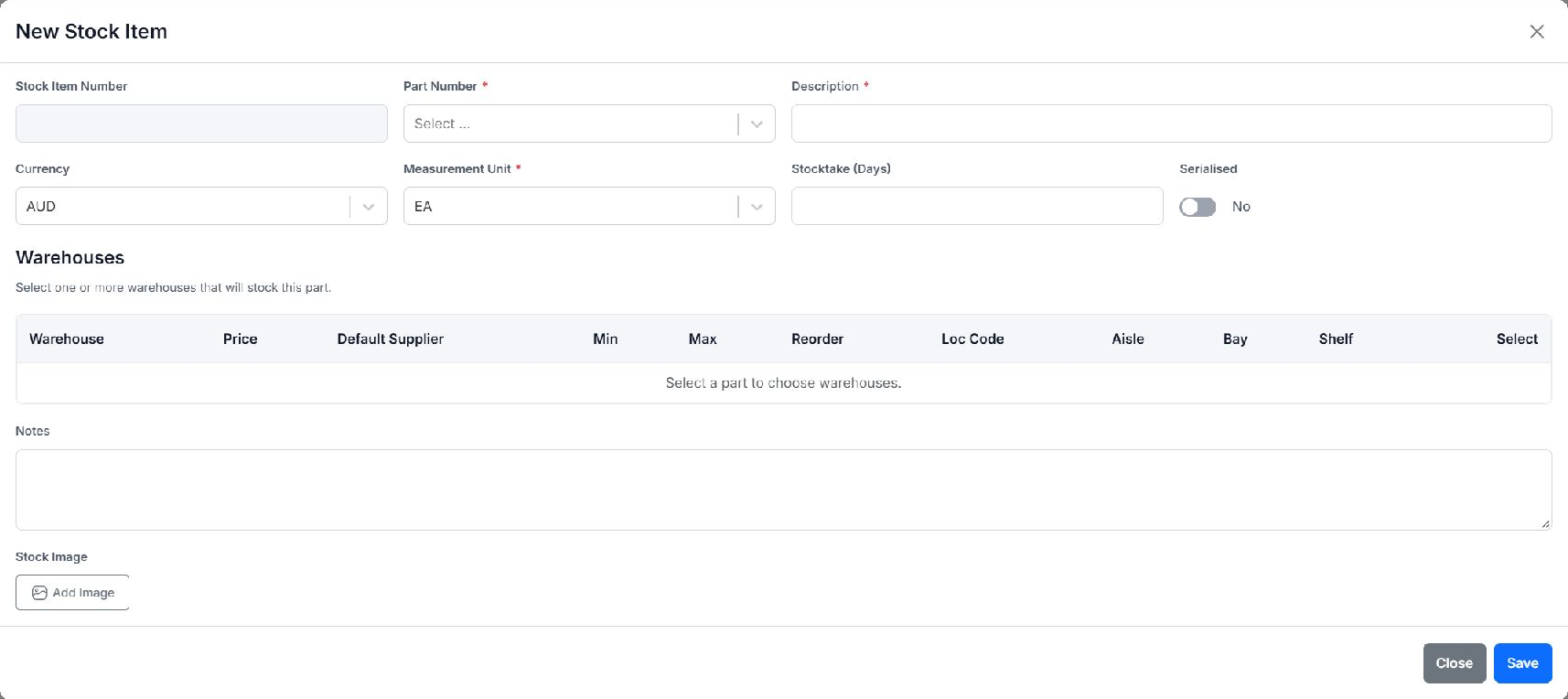
View the stock item dialog at full size to read the warehouse columns.
3. Choose warehouses and locations
The Warehouses table fills after you select a Part.
- Tick Select for each warehouse that will stock the Part. At least one warehouse is required.
- For each selected warehouse, review Price and Default Supplier. Set Min, Max and Reorder quantities if used for replenishment.
- Enter Aisle, Bay and Shelf, as applicable. Samurai builds the read-only Loc Code from the location details. These describe where to find the stocked item within that warehouse; they are not opening quantities.
- Select Save. Samurai registers the selected warehouse stock records and updates the Part's stocked status.
If the Part is already stocked in a warehouse, edit its existing Stock Item to review or extend the warehouse setup. Do not create a duplicate for the same Part and warehouse.
4. Record the opening quantities
Choose the method that matches how the goods arrived. Do not enter both an adjustment and a receipt for the same stock.
Stock already on the shelf
- In Stock Items, find the registered item and check its warehouse.
- Open its Actions menu (three dots) and select Adjust.
- Enter Adjustment quantity for that warehouse's Stock Item. This is the change to the balance, not a replacement total: for a new zero balance and 10 units physically counted, enter 10.
- Enter Notes / reason, such as the opening count reference, review the details and select Submit. Repeat for each warehouse as needed.
Stock arriving from a supplier
- From the Stock Item's Actions menu, select Order Parts. Choose the Warehouse and Supplier, then review Order quantity, Unit cost and Required date. Confirm the order to create the Draft Purchase Order.
- Complete the normal Purchase Order process, including approval and sending it to the supplier as required.
- When the goods arrive, open Receiving in Samurai, select the warehouse and Purchase Order, and record the actual receipt. Follow the Stock Receiving Console guide for partial receipts, damage and confirmation.
- Complete Put Away when required to move received stock to its shelf location. Creating or approving the Purchase Order alone does not add shelf stock.
Finally, return to Stock Items, check the warehouse's On Hand, Available and To Put Away quantities, and review the item's Transactions tab. Investigate any difference from the physical count before issuing stock.