
Overrides and Recalculation
Open Plant Hire Invoicing in Samurai
Use an override for an approved invoice-specific exception. Correct recurring errors in the source assignment, rate or reading so the problem does not return next month.
Save an override
- Select the billing start month and year in Invoicing.
- Find the invoice and Asset row, then select its green pencil to open Review Invoice.
- Compare the calculated values with the override entries. Check the hire window, actual reading times, rate, minimum and revenue account.
- Enter the appropriate override and a clear Override reason. Review the updated proposed total.
- Add customer-facing wording in Notes (To be shown on the Invoice) if required, then select Save.
Blank means use the standard calculation. Zero is an explicit override, so it also needs a reason. Negative override values are rejected. Committed charges must be reversed before editing; sent invoices are locked.
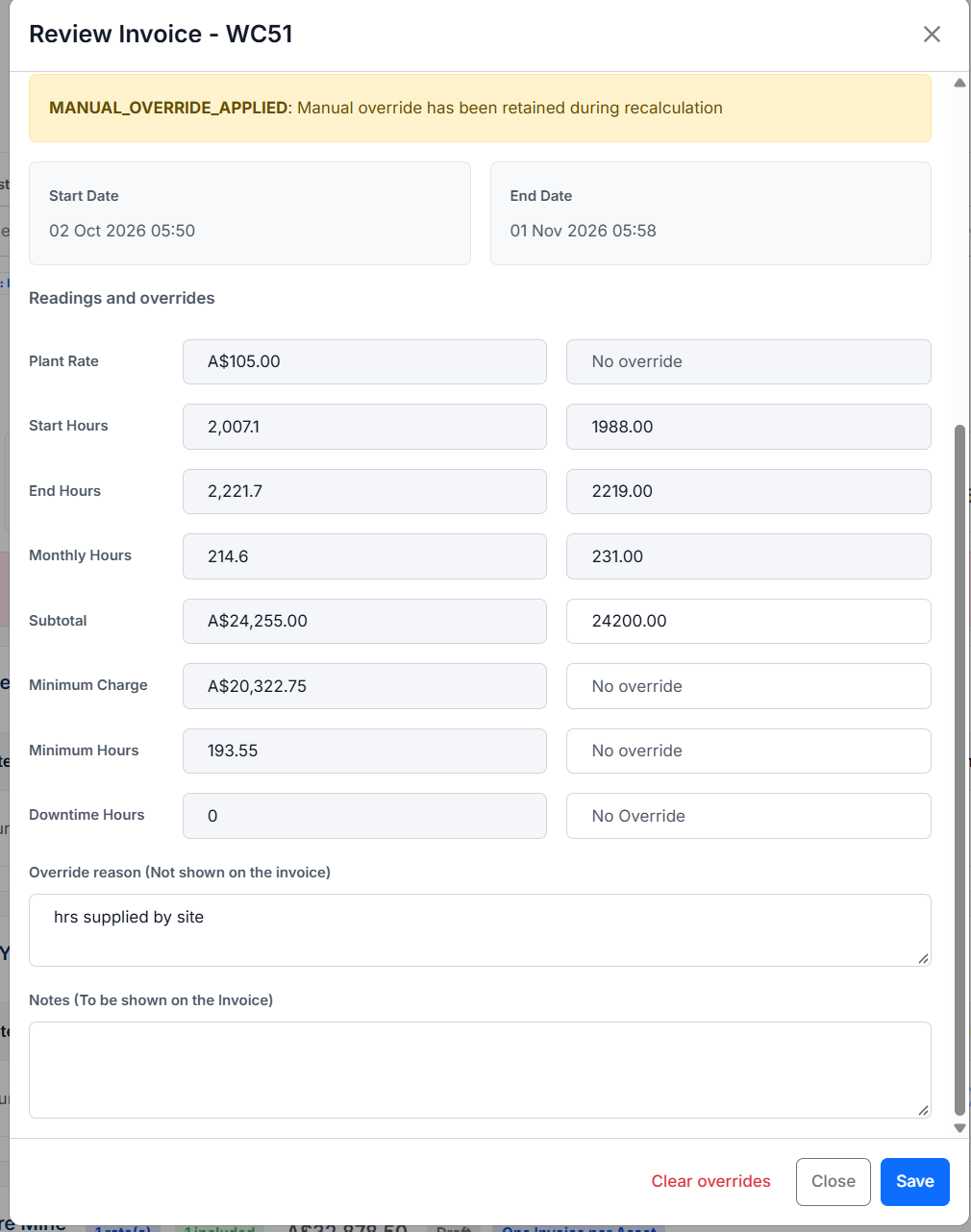
The training capture contains several retained entries to illustrate the fields. Use one intentional override approach; do not copy its values or fill competing modes simply because they appear here.
Choose the appropriate input
| Override | Effect |
|---|---|
| Plant Rate | Replaces the effective price for this row; also changes the monetary value of hours-based minimums. |
| Start Hours / End Hours | Replaces invoice boundary values without rewriting the source meter readings. The effective difference must not be negative. |
| Monthly Hours | Supplies the agreed usage quantity instead of the boundary difference. Minimum rules can still increase billable hours. |
| Subtotal | Proposes the charge before GST. An applicable monetary minimum can still raise it. |
| Minimum Hours | Sets the minimum-hours quantity for this row without another proration. Retains Less Downtime when that basis is configured. |
| Minimum Charge | Replaces the monetary floor. Does not by itself remove a minimum-hours quantity. |
| Downtime Hours | Replaces calculated downtime for a Less Downtime basis; zero explicitly applies no downtime deduction. |
| Start Date / End Date on Daily rows | Changes the dates used to count chargeable weekdays. End must not precede Start. |
| Monthly Days on Daily rows | Supplies the agreed daily quantity instead of counting weekdays. |
The form disables superseded fields. Subtotal takes priority over deriving the ordinary charge from quantity and rate; Monthly Hours takes priority over a boundary difference. Only one of Minimum Hours or Minimum Charge can be entered at a time; clear one before using the other.
Why a smaller Subtotal may not reduce the invoice
At 5 actual hours, a 25-hour minimum and $10/hour, the minimum is $250. A $100 Subtotal override still produces $250. The form can show This value is not used. Minimum hours calculation applies.
For an approved minimum waiver, change the relevant minimum input as well. Setting Minimum Charge to zero alone does not remove an hours floor. Setting Minimum Hours to zero removes that hours floor, while actual usage remains chargeable unless another approved override changes the amount. See Charges and minimums.
What Save and Clear overrides do
Saving or clearing overrides updates saved charge lines and invoice totals immediately. You do not need a full-run recalculation just to apply that save.
A Subtotal override or monetary minimum can generate an adjustment line so the stated rate and quantity remain visible. For example, a $1,000 ordinary charge with an approved $900 Subtotal can retain the ordinary line and show a $100 reduction. Inspect both lines on the PDF.
Clear overrides restores the saved standard calculation and automatic minimum/downtime rules. It does not fetch a newly edited source rate. Review the restored values and warnings afterwards.
The internal Override reason is separate from customer-facing row Notes and invoice-level Notes. Do not rely on the internal reason as the customer's explanation.
When to recalculate
| Change | Next action |
|---|---|
| Saved or cleared an override | Review the updated row and total. |
| Added a reading using the row's gauge | Inspect the refreshed row; it uses the existing saved billing window. |
| Corrected readings elsewhere | Refresh the reading calculation or recalculate before final review. |
| Changed source assignment, rate, weekdays or Customer billing cycle | Select Recalculate and review the revised drafts. |
A red indicator above Recalculate means the saved source calculation is out of date. Recalculation refreshes eligible drafts across the run and retains valid exclusions and overrides. It does not replace committed or sent invoice scopes.
Review the confirmation, including any changed Customer-cycle dates. Period-sensitive overrides can block a cycle change until cleared. After recalculation, recheck warnings, timing acceptances, references, notes, accounts, adjustments and PDFs. Finish Invoice Details after the final recalculation.