
Commit and Correct Invoices
Open Plant Hire Invoicing in Samurai
Committing locks the invoice's charges. It does not send the invoice to Xero or email it to the Customer. Complete review, charge checks, and any necessary recalculation first.
Check eligibility
Review all invoice groups in the selected run, including groups hidden by your current filters. Confirm the hire windows, rate, readings, minimum, downtime, override reasons, inclusion choices, invoice details, GST and totals.
Both Blocking warnings and ordinary unresolved actionable warnings can prevent an included invoice from committing. A Manual override applied information notice does not by itself block an otherwise valid invoice. Warnings on excluded rows do not prevent clean included charges from committing.
Missing External Account information must also be resolved for Xero sending; do not assume that a successful commit proves every Xero requirement is met.
Commit the invoices
- Open Invoicing and confirm the billing start month and year.
- Select Commit Invoices.
- Read the whole-run invoice counts, included/excluded counts, totals and warning information. These can differ from filtered summary cards.
- Select the confirmation that you have reviewed rates, readings, overrides, exclusions and totals.
- Select Commit Invoices in the dialog.
- Check the resulting statuses and review any invoices left in Draft.
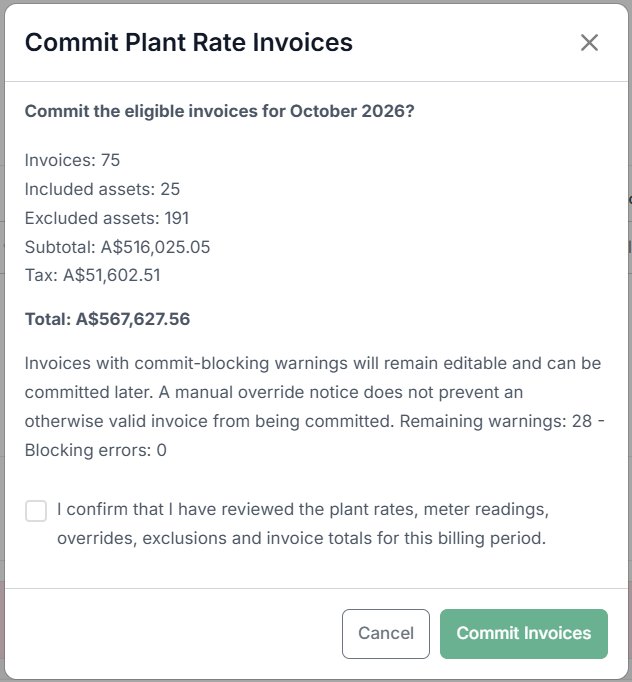
This training example includes remaining warnings. It illustrates a partial commit: eligible clean invoices can lock while unresolved invoices remain editable.
Commit operates across the selected billing run. Customer, Project and Asset review filters are not a posting selection.
Partial commits
A mixed run can contain Committed invoices and remaining Draft invoices. Correct the Draft invoices, recalculate where needed, and commit them later. Recalculation retains already committed/sent scopes rather than rebuilding them.
Use the month-end checklist to complete remaining work before issuing the period's invoices.
Correct an unsent committed invoice
- In Invoicing, find the Committed invoice and choose Reverse invoice on one of its Asset rows.
- Check the invoice number and enter a Reversal reason.
- Select Reverse Invoice. The reversal is audited and returns the invoice to Draft for editing.
- Correct its data, recalculate if source data changed, and review the complete invoice.
- Commit again when ready, then print or send it.
Reversal applies to the whole invoice, not only the Asset row used to open the dialog. It also returns the billing run to Draft so the correction workflow can proceed. Other committed invoices remain locked.
An invoice already Sent to Xero cannot be reversed through this local workflow. Coordinate any credit, void or replacement with your accounts team in the connected Xero organisation. A local reversal is not a Xero credit note.