
Rates, Quotes and Assignments
Open Plant Rate Book in Samurai
The rate book holds reusable hire rates. A quote records a proposed agreement. An Asset assignment identifies the actual Asset, Project, rate, and hire dates that feed invoicing. Check each stage against the agreed hire terms.
Maintain the rate book
- Open Plant Rate Book from Plant Management.
- Search or filter by Model/Group, Class, Rate Basis, or rate type.
- Edit an existing rate, or select Add Plant Rate for an additional rate variant.
- Confirm the Model / Group, Name, Currency, Rate Basis, and Rate Type.
- For a Simple rate, enter the agreed price. For a Calculated rate, review the costing inputs and calculated value.
- Check the applicable minimum basis and values. For Daily rates, check chargeable weekdays. Record notes and save.
A generated $0 placeholder is a prompt to review and complete a rate, not proof that the hire agreement has been priced. A genuine agreed zero rate can be retained deliberately.
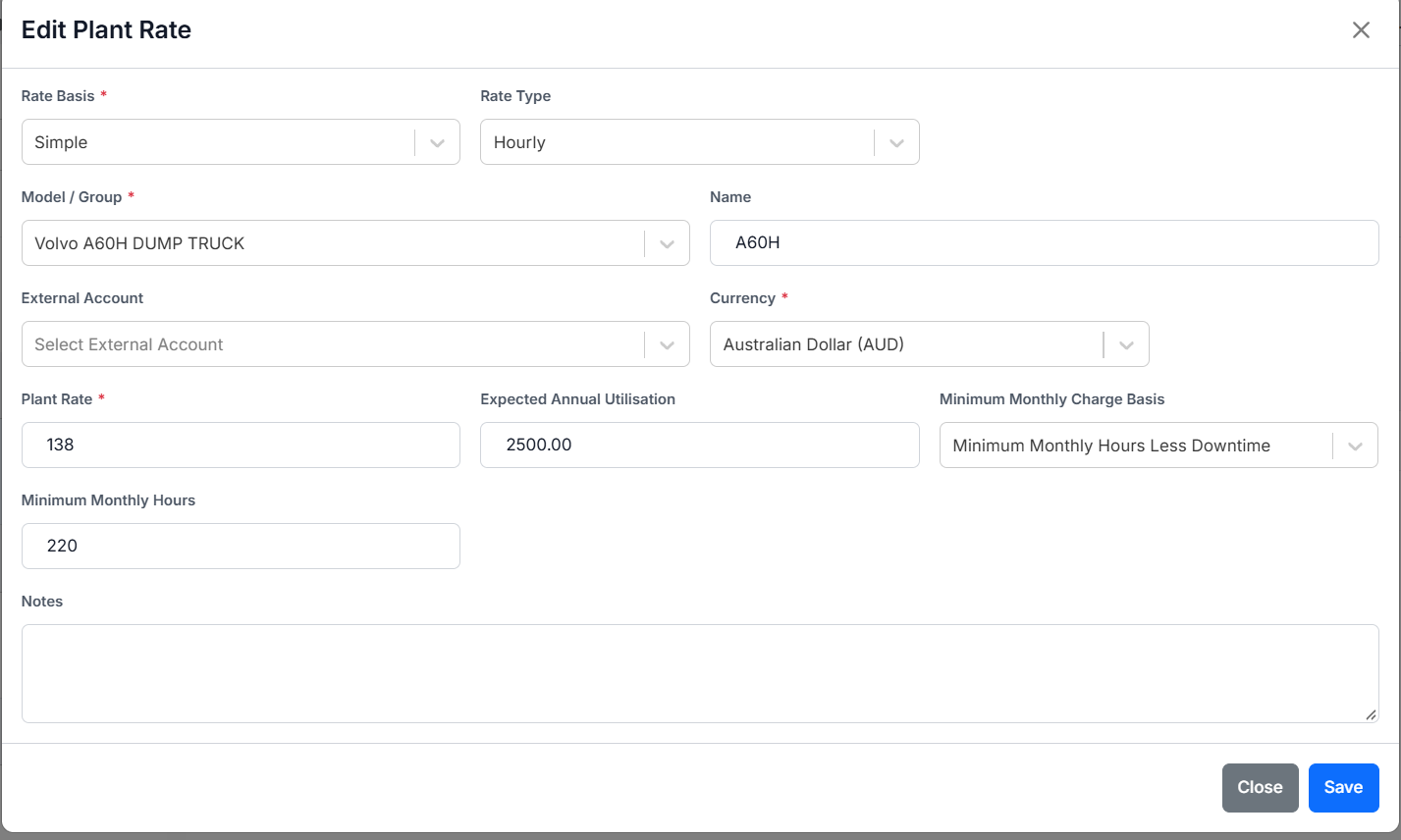
The training example shows an hourly rate and a Less Downtime minimum. Use your agreement's values; these figures are illustrative.
Quotes before the hire
Open Plant Hire Quotes to review an existing quote or select + Add Quote. Check Customer, Department, Project where applicable, dates, equipment quantities, rates, minimums, additional charges, and notes. Maintain its status and retained revisions through the available quote workflow.
A quotation can describe a Model or equipment quantity before specific Assets are chosen. Before billing, verify the actual Asset assignments and project rates against the accepted agreement. A quote status alone does not confirm that an Asset has been delivered, assigned, or invoiced.
Assign the actual Asset
- Open Asset Assignment and add or edit the required assignment.
- Select the Asset and Project.
- Select the applicable Plant Rate. The selector distinguishes Project Rate from Book Rate and matches the Asset's Model/Group. Correct the rate setup if it shows No Plant Rate Available.
- Enter Start and End, confirm Status and Hire Status, and add relevant Notes.
- Save and check the Project, hire dates, and rate against the agreement. Review any confirmation about changing the Asset's current hire information.
Use distinct dated assignments for a change of Project or rate during a hire. Editing one rate's price in place does not create a historical price schedule. Avoid overlapping hire dates. For a same-date handover, the handover day is charged to the incoming assignment; the outgoing charge window ends the day before.
On hire and off hire
Open Assets and Asset Assignment to keep the hire flag, Hire Status, Project, and assignment dates consistent. Record actual meter readings with their timestamps at on-hire and off-hire using Meter Readings.
After changing assignments or rates for a period with saved drafts, return to Plant Hire Invoicing, select Recalculate, and recheck the resulting charge windows and amounts.