
Print and Send Invoices
Open Plant Hire Invoicing in Samurai
Printing, sending to Xero, and delivering an invoice to the Customer are different steps. Use drafts for review, then commit the eligible invoice charges before issuing the invoice.
Set Invoice Details
- Find the invoice group in Invoicing and choose Invoice Details.
- Confirm the invoice number and set Invoice Date, Reference, and the overall invoice Note.
- Select Save, then inspect the PDF.
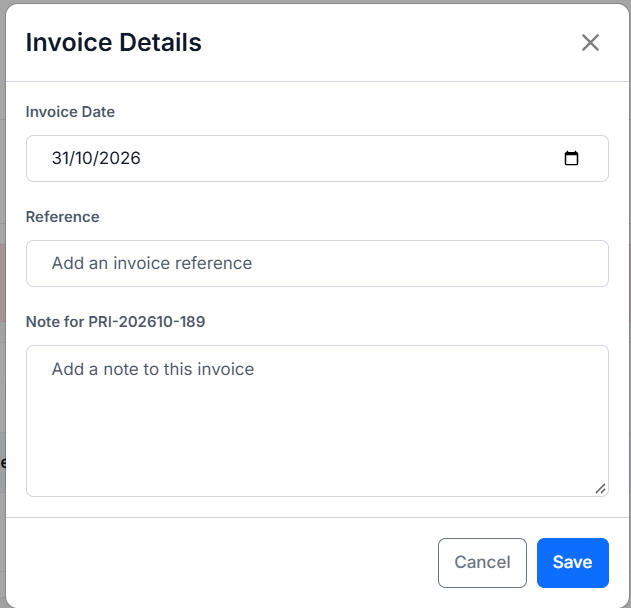
The issue date is separate from the hire period. Customer payment terms determine the due date from that issue date; check them in Plant Management reference tables. Invoice Date is retained when the same Customer/Project draft is recalculated. Recheck references and notes after a full recalculation.
Committed charges are locked, but Invoice Details can still be edited until sending to Xero. Once sent, those details are locked too.
Print PDFs
Use Print PDF in an invoice group to print its invoice. For a combined output:
- Apply review filters to find the intended invoices.
- Select Print All PDF.
- Choose Draft, Committed, or Sent to Xero, where available. The default is Sent to Xero when connected, otherwise Committed.
- Check or uncheck the offered invoices and select Print.
- Review the generated PDF before issuing it.
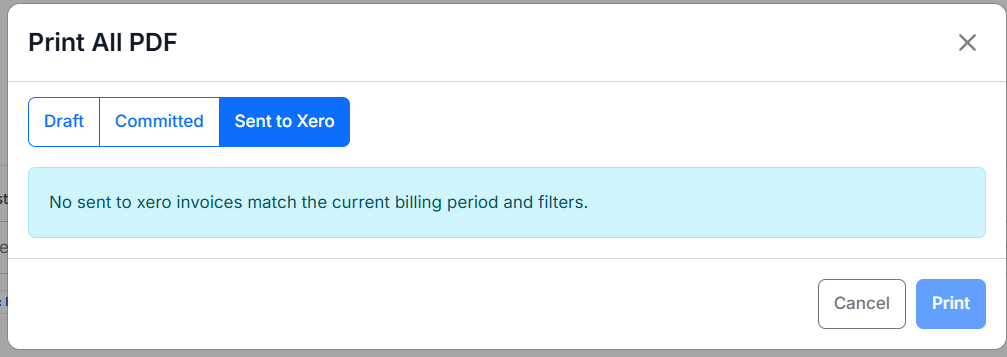
The example has no matching sent invoices. Change the status or filters and confirm eligibility before printing.
A selected invoice prints all of its included lines, even if an Asset filter showed only part of it. The Customer's One Invoice per Asset basis can split local printed sections/documents; the underlying Customer/Project grouping sent to Xero remains separate from that presentation choice.
Check issuer and customer details, invoice status, issue date, period, reading datetimes/timezone, quantities, rates, minimums, separate fees, adjustments, notes, reference, due date, currency, GST and total. A Draft PDF remains a review document and does not lock the invoice.
Prepare for Xero
Confirm the integration is connected and you have sending access. For every invoice, check:
- Committed status, deliberate inclusion, and the correct billing start month/year.
- Customer mapping to a contact in the Xero organisation routed for your organisation.
- Valid revenue External Account selections for charge lines.
- Currency, issue date, payment terms, reference, tax and saved line totals.
Maintain source Customer/Project details in Plant Management reference tables. Use the row pencil in Invoicing to review an invoice charge's account. Ask the integration administrator to correct organisation/contact/account mapping errors.
Send committed invoices
- In Invoicing, choose the billing start month and year.
- Select Send to Xero and review the complete eligible-invoice preview.
- Resolve the reported validation errors before sending. The preview is not a set of invoice-selection checkboxes.
- Select Send to Xero in the dialog when ready.
- Review Sent, Failed, and Skipped results individually.
- Verify successful invoices, numbers, Customer, dates, accounts, reference, GST and totals in Xero.
Sending covers eligible committed invoices for the selected month/year, independently of the review filters.
Successful transfers create authorised sales invoices in Xero, with amounts exclusive of tax; they are not Xero drafts. Local status becomes Sent to Xero, with the external invoice identifier/number recorded. A blank Reference falls back to the local invoice number. Local PDF notes and internal override reasons should not be assumed to become Xero customer messages; check any additional wording before delivery.
Failed, skipped or uncertain sends
A batch can succeed for some invoices and fail for others. Correct the failed invoices and retry eligible sends; successfully linked invoices are not ordinary resend candidates.
Skipped can mean already sent or currently processing. For a timeout or reconciliation message, follow the message and check Xero with the accounts/integration administrator before sending a changed replacement. Do not create a duplicate just because a response was delayed.
Sending to Xero creates the accounting invoice. Arrange customer delivery through your normal Xero or accounts process; it does not imply an automatic email to the Customer.